Put your next image into words.

AI Image Generator:
Create the Image You Have in Mind

Turn a text prompt into a product concept, campaign visual, or original illustration with GPT Image 2. Describe the subject and style, choose your output settings, and generate your first version.

Powered by GPT Image 2Text to ImageOptional ReferencesLive Credit Estimate
Text-to-image · 3 credits
Try a prompt:

Review the credit estimate, then sign in to generate.

Start with a description

What Is an AI Image Generator?

An AI image generator creates new pictures from written descriptions. Your prompt tells it what to show and how it should look, including subjects, setting, lighting, and style. With imakeit.ai, you can generate a first version, review the details, and download the result.

10 ideas you can make your own

Start with a Prompt for Your Next Project

Choose a starting point for your next image. Each example includes a prompt you can load into the generator and adapt to your brief. The previews are placeholders for future example images.

01Product concepts

Give a Product Idea Its First Look

Explore a product's materials, shape, and presentation before it exists. Describe the finish, props, and lighting to create a concept you can discuss with your team.

The prompt

Studio product photograph of an ELUNVA amber-glass serum bottle with an ivory label and white dropper cap, sculptural limestone, warm sunlight, a soft beige background, realistic reflections, and gentle shadows.
Use this as a visual concept, not a manufacturing specification.

02Campaign visuals

Build the Visual for Your Next Campaign

Create a campaign image with room for the headline you will add. Name the focal point, palette, and setting so the image gives your message somewhere to land.

The prompt

Editorial photograph of iced matcha in a clear glass on sunlit terracotta cafe tiles, natural grout lines, creamy swirls, translucent ice and condensation. Drink on the right, open space on the left for a headline.

03 / Video thumbnails

Give Your Next Video a Visual Hook

Turn a video topic into a clear scene with one strong focal point. Leave room for a title you can add after generation.

The prompt

Cinematic photograph of a glowing greenhouse and astronaut on Mars. Rust-red terrain, lush green plants, warm interior light. Place the greenhouse on the right, with clean space on the left for a title.

04 / Event posters

Put Your Event into the Picture

Explore a poster direction with a short headline and a defined palette. Keep the wording brief so you can check each letter in the result.

The prompt

Design a geometric jazz poster with a dark navy background, cream saxophone and bold typography, plus vermilion accents. Use only the headline "MIDNIGHT JAZZ" and the date "FRIDAY 24".

Check spelling, dates, and layout before sharing or printing.

05 / Fictional portraits

Create a Portrait for Your Story

Define a fictional person through their setting, clothing, and expression. Specify the framing and light to set the tone of the portrait.

The prompt

Cinematic portrait of a fictional elderly lighthouse keeper wearing an ochre raincoat over a navy sweater. Weathered face, quiet resolve, stormy coastal backdrop, cool daylight, warm window glow, and natural skin texture.

06 / Original characters

Give an Original Character a Clear Identity

Establish an outfit, silhouette, and signature accessory for a character concept. Start with a simple pose to make the design easier to review.

The prompt

Full-body clay-style concept of a desert courier with a sand-colored cloak, dark travel boots, and a teal messenger bag. Relaxed standing pose, sculpted handmade textures, warm rim light, simple beige background.

07 / Storybook illustrations

Illustrate the Scene Your Story Needs

Build an illustration around the moment you want readers to picture. Describe the mood and leave space for the story text you will add.

The prompt

Watercolor storybook illustration of a curious fox looking through a telescope on a grassy hill, indigo stars, warm lantern light, delicate pencil details, textured paper, and quiet space for story text.

08 / Brand mascots

Explore a Mascot for Your Brand

Try a recognizable symbol before refining a brand identity. Limit the palette and describe the shapes that should make the mascot distinct.

The prompt

Create a flat geometric otter mascot for a fictional coffee brand. Use espresso brown and warm cream, a rounded silhouette, and a coffee cup motif on its belly. Center it on a plain background without lettering.

Review originality and brand suitability before adopting a design.

09 / Interior concepts

Picture a Space Before You Build It

Explore furniture, materials, and lighting for a room concept. Describe the viewpoint to make the arrangement easier to assess.

The prompt

Photorealistic Mediterranean kitchen with sage-green cabinets, pale limestone countertops, terracotta floor tiles, and white plaster walls. Bright morning sunlight, brushed brass details, and an eye-level wide view showing the practical L-shaped layout.

10 / Educational visuals

Make a Process Easier to Picture

Create an illustration to introduce a process. Name the parts and show how they connect so you have a useful starting point for a lesson.

The prompt

Create a clear rainwater collection diagram: roof, gutter, storage tank, and vegetable garden linked by blue flow arrows. Use a cutaway view, English labels, a white background, and fresh blue and green colors.

Check connections and factual details before using it to teach.

Prompts are starting points. Results vary with your description, references, and output settings.

From description to download

How to Generate an Image from Text

Describe the image, review your settings, and generate a version you can build on.

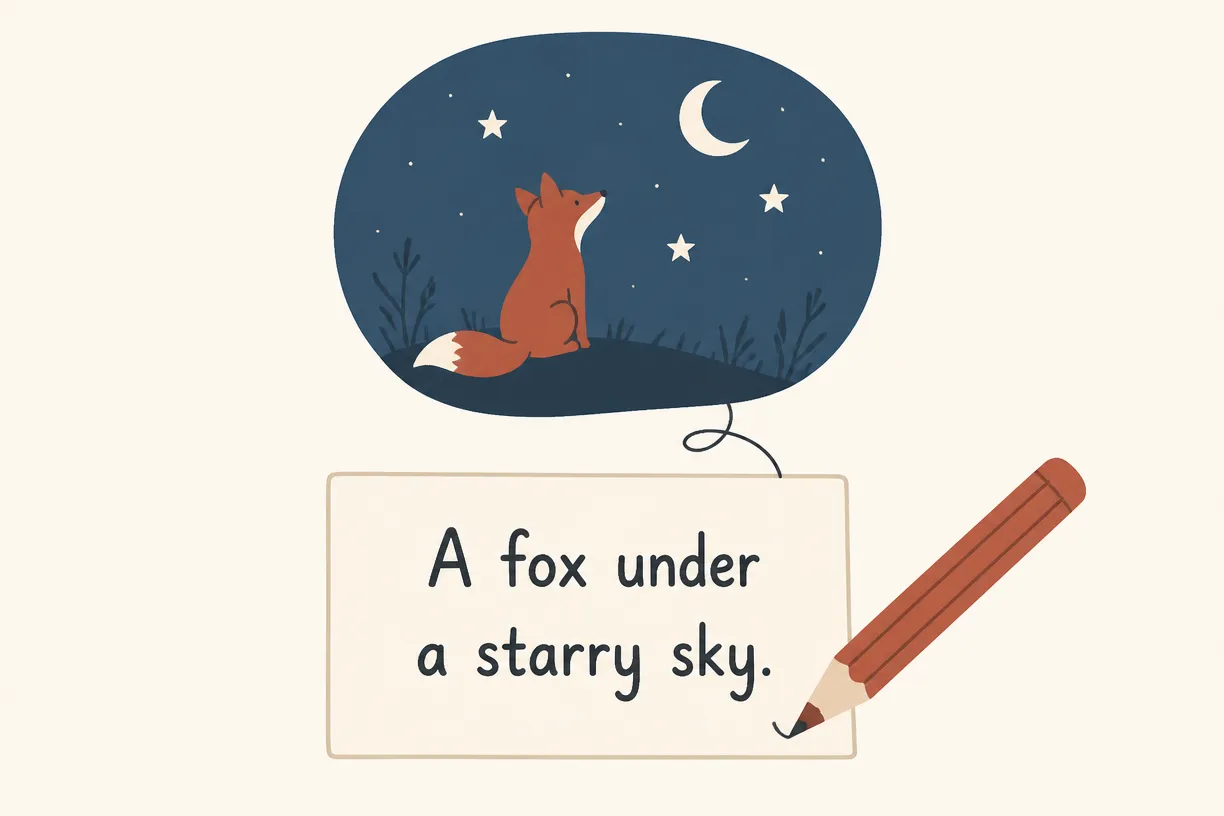
  1. A pencil beside a prompt card, connected to an imagined fox beneath the moon and stars.
    STEP 01

    Describe Your Image

    Write what you want to see. Include the subject, setting, and style, then add the details that matter to your project. Choose an example prompt below the tool if you need a starting point.

    A sentence is enough to start. References are optional.

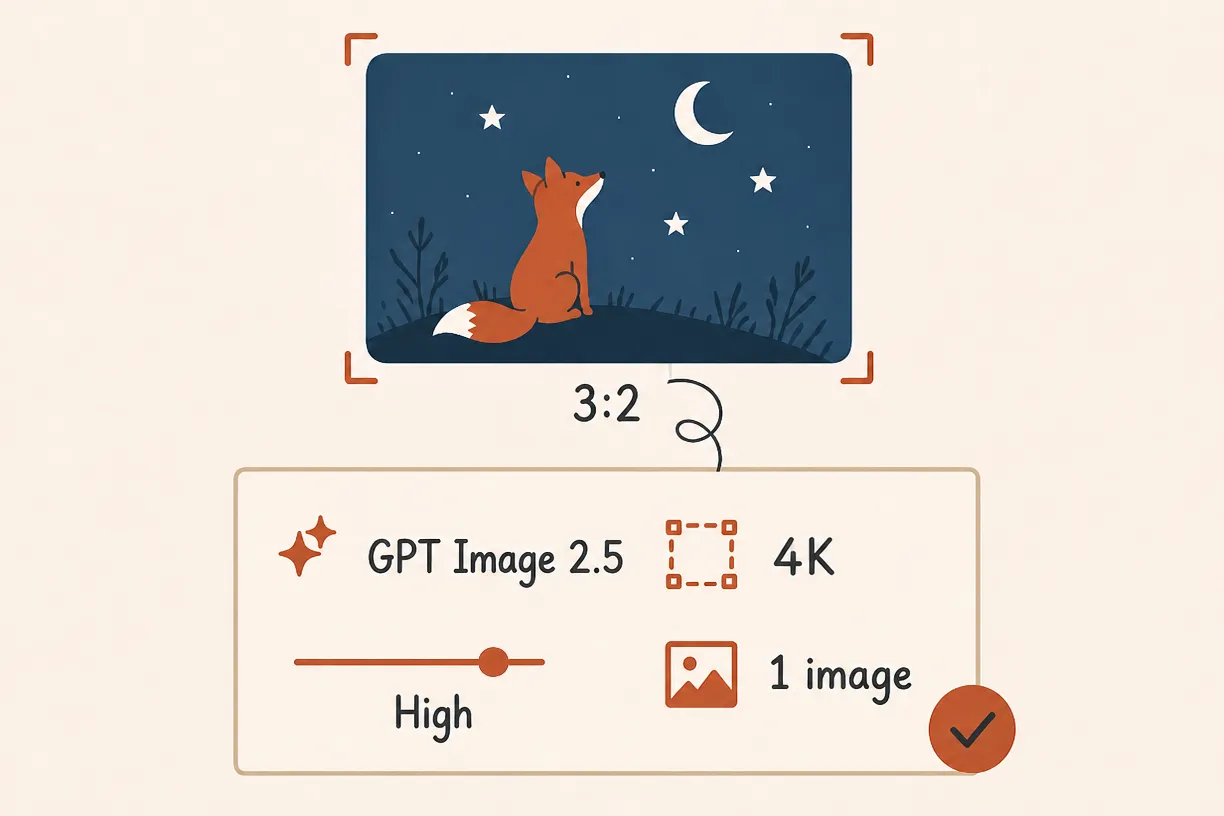
  2. Illustrated output settings showing GPT Image 2.5, a 3:2 aspect ratio, 4K resolution, High quality, and one image beneath a fox preview.
    STEP 02

    Choose Your Output Settings

    Select a model, aspect ratio, resolution, quality, and image count. Review the displayed credit estimate and any sign-in requirement before you generate.

    Match the format to where you plan to use the image.

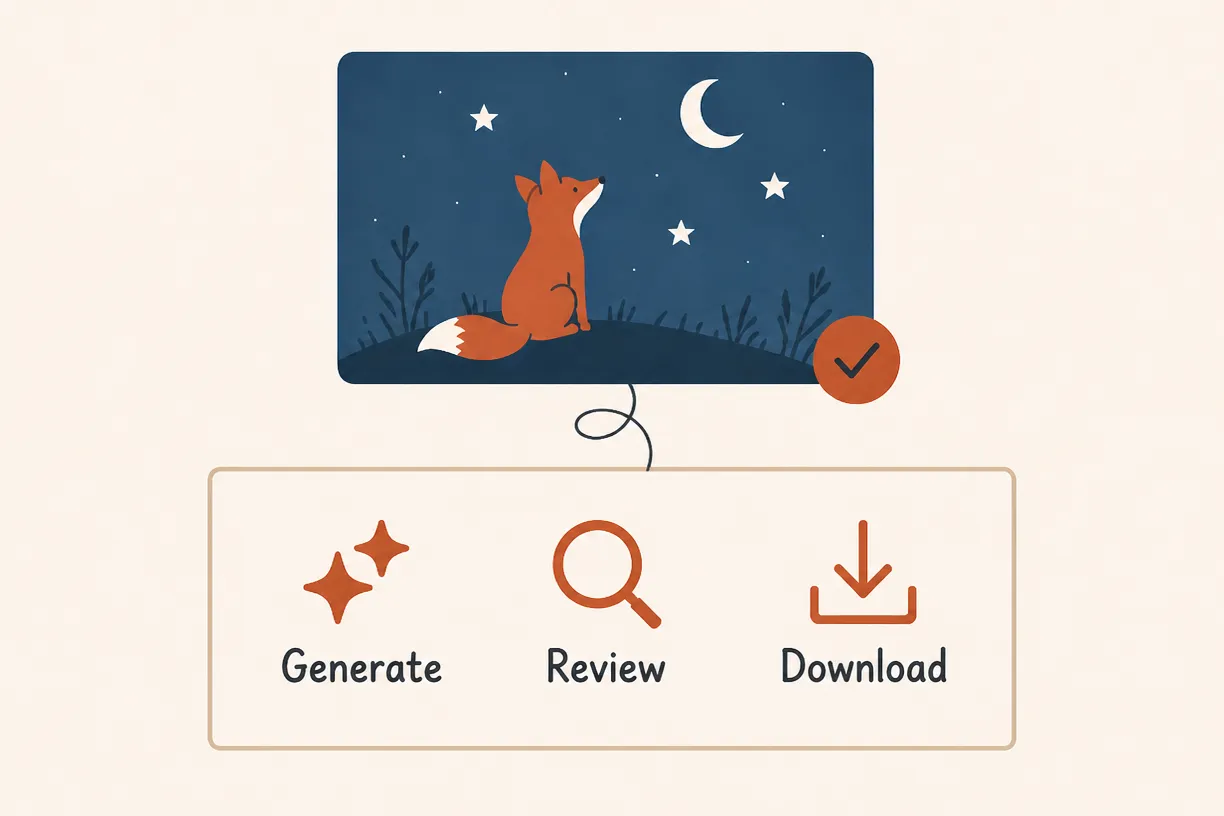
  3. A completed fox image with a check mark above Generate, Review, and Download icons.
    STEP 03

    Generate, Review, and Download

    Generate your first version and inspect the result. Check faces, lettering, and small details. Refine your prompt for another attempt or download the image you want to keep.

    Each new attempt has its own displayed cost.

Give Your Prompt a Clear Direction

Start with the subject. Add the setting and the style, then describe the light and where important elements should sit. If you need space for a headline, say which side should stay clear.

Make one deliberate change between attempts so you can see its effect. Check lettering and fine details before using the image.

Subject + Setting + Style + Light + Composition + Details

Instead of a broad idea

An ad for a matcha drink.

Describe the image you need

Editorial photograph of iced matcha in a clear glass on sunlit terracotta cafe tiles, natural grout lines, creamy swirls, translucent ice and condensation. Drink on the right, open space on the left for a headline.

Why create with imakeit.ai

Create Around Your Brief, Format, and Budget

Guide the picture with your prompt and choose the output settings for the work ahead.

Direct the Image with Everyday Words

Describe the subject, materials, and lighting you want. GPT Image 2 uses your instructions to generate a visual you can review and refine with another prompt.

Fit the Format to Your Project

Choose from nine aspect ratios for a square post, a landscape thumbnail, or a portrait visual. Check the exact pixel dimensions in the output settings before you generate.

Check the Cost Before You Create

Choose a resolution, quality, and image count for your project. Check the credit estimate before generating.

Keep the Image You Create

Download the generated file from a completed result. imakeit.ai does not add a watermark, including on images created with free credits. Review the details before publishing.

Choose the Credits for Your Next Image

Create an account with a Google email to get 30 free credits. For more images, compare subscriptions and one-time credit packs.

Subscribers get +50% extra credits at the same price

200 Credits

$5One-time payment

Subscribers receive: 300

  • Base credits: 200
  • Subscriber bonus: 100
  • No recurring billing
  • Valid for 6 months
Recommended

1,500 Credits

$29.9One-time payment

Subscribers receive: 2,250

  • Base credits: 1,500
  • Subscriber bonus: 750
  • No recurring billing
  • Valid for 6 months

3,000 Credits

$49.9One-time payment

Subscribers receive: 4,500

  • Base credits: 3,000
  • Subscriber bonus: 1,500
  • No recurring billing
  • Valid for 6 months

8,000 Credits

$99.9One-time payment

Subscribers receive: 12,000

  • Base credits: 8,000
  • Subscriber bonus: 4,000
  • No recurring billing
  • Valid for 6 months

Keep working on your next image

Have an Image You Want to Change?

Start with an existing photo when your project calls for an edit or a new visual direction.

AI Photo Editor

Upload a photo and describe a focused change. Remove an object, replace a background, or adjust a color in the image you have.

Edit an Existing Photo

Image to Image

Use your photo or reference images as the starting point for a new style, scene, or composition. Describe what should change and what should stay.

Explore Image to Image

Before your first image

AI Image Generator FAQ

Answers about prompts, free access, output settings, and using your generated images.

Contact support

How do I generate an image from text?

Type a description of the image you want, choose your output settings, and click Generate My Image. Describe the subject, setting, style, and any important details. Review the result, adjust your prompt if needed, and download the version that fits your project.

Can I try the AI image generator for free?

Yes. Create an account with a Google email to get 30 free credits. You can choose your model and settings before signing in to generate.

What should I include in an AI image prompt?

Describe the main subject, its surroundings, the visual style, lighting, and composition. Add specific details that matter, such as materials or space for a headline. For example, "a sage-green portable speaker on a stone plinth, soft studio light, three-quarter view" gives the image a clearer direction than "a speaker".

Why might my generated image differ from the prompt?

AI interprets your description and may miss details or introduce unexpected elements. Long prompts with conflicting instructions can be harder to follow. Make the main subject clear, prioritize the most important details, and change one instruction between attempts. Review every output, especially text, faces, and fine product details.

Can I add reference images to my prompt?

Yes. You can optionally upload reference images in the generator to help communicate your subject, style, or composition. You can also generate from text alone. Loading an example prompt keeps any references you have already attached. For a focused change to an existing photo, use our AI Photo Editor.

Open AI Photo Editor

Which image sizes and aspect ratios can I choose?

The current generator offers aspect ratios including square 1:1, landscape 16:9, and portrait 9:16. Resolution options are 0.8K, 1K, 2K, and 4K. Exact pixel dimensions depend on the selected ratio and are shown in the output settings.

How many credits does an AI image cost?

The credit estimate depends on the selected model, aspect ratio, resolution, quality, and number of images. Check the amount next to the generation button before submitting. Each attempt has its own cost. Compare subscriptions and one-time credit packs in the pricing section.

View Plans & Credits

Can I generate readable text inside an image?

You can request short text for a poster, sign, or graphic. Put the exact words in quotation marks and describe their placement, font style, and color. Keep the wording brief and check the output carefully. Spelling, small lettering, and complex layouts may need another attempt or a separate text edit.

Can I download AI images without a watermark?

Yes. imakeit.ai does not add a watermark to generated images, including images created with free credits. Use the download button on a completed result to save the generated file. Review the image at full size before sharing or printing it.

Can I use the generated images for commercial projects?

Our Terms of Service permit personal and commercial use of your generated images, subject to applicable law and third-party rights. Review the output before publishing it. AI results may not be unique or eligible for intellectual-property protection, and you are responsible for any permissions your project requires.

Read our Terms of Service

Put your next prompt to work

Create the First Version of Your Next Idea

Write what you want to see, or choose a prompt above. Generate a first version, then refine the details for your project.

View Plans & Credits

New accounts receive 30 free credits. Choose your settings and review the estimate before generating.