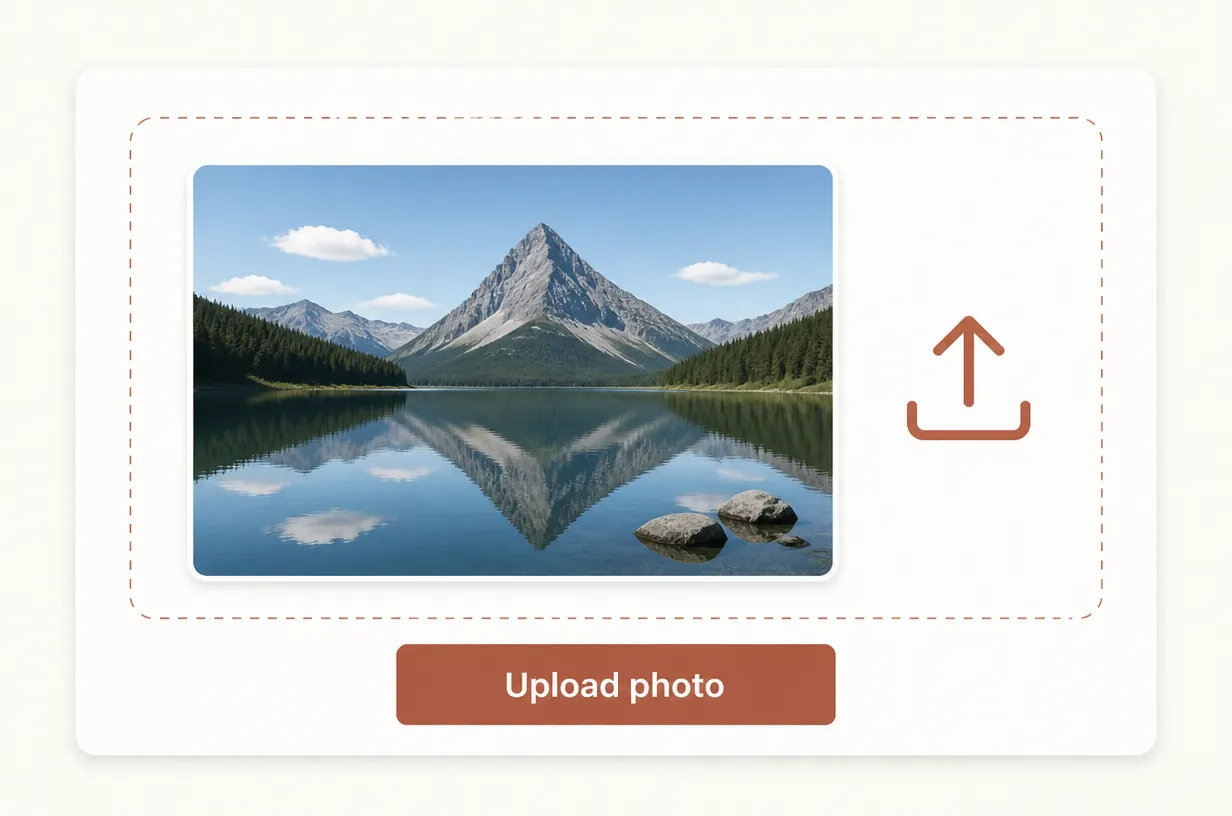
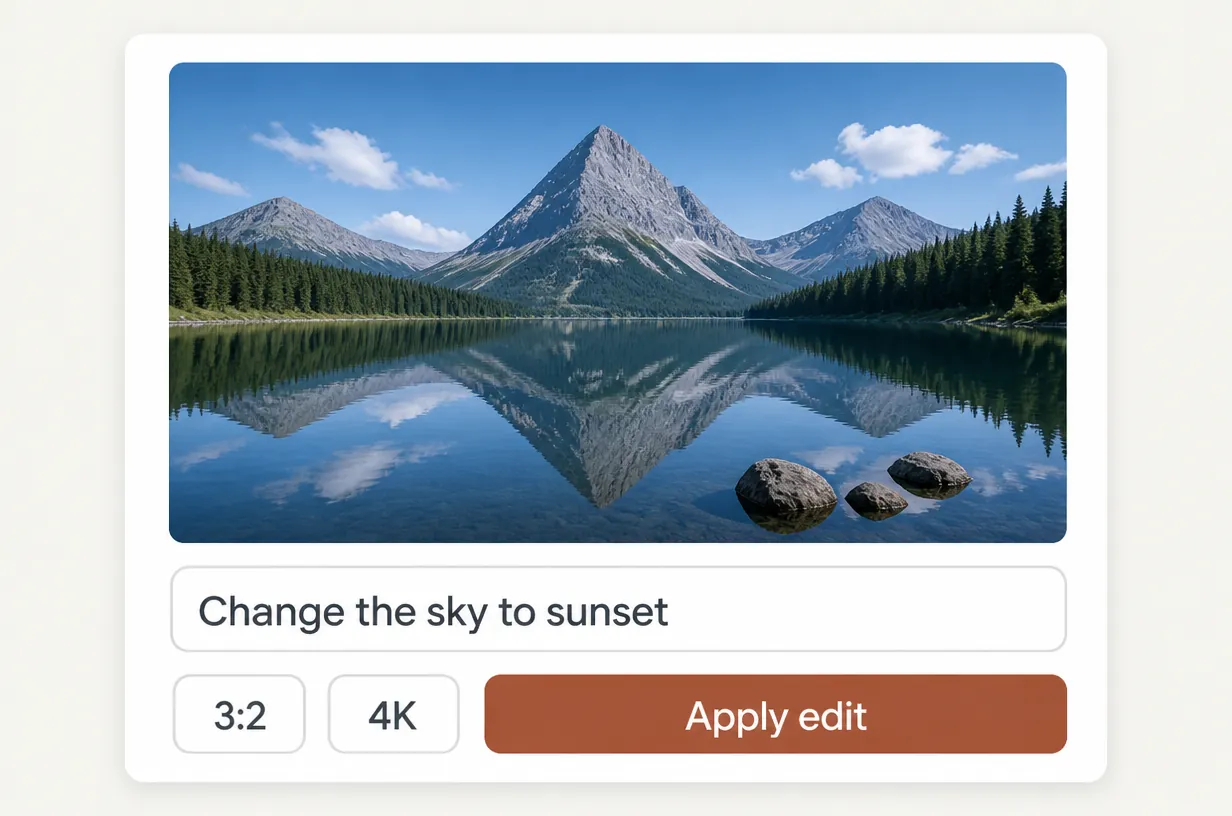
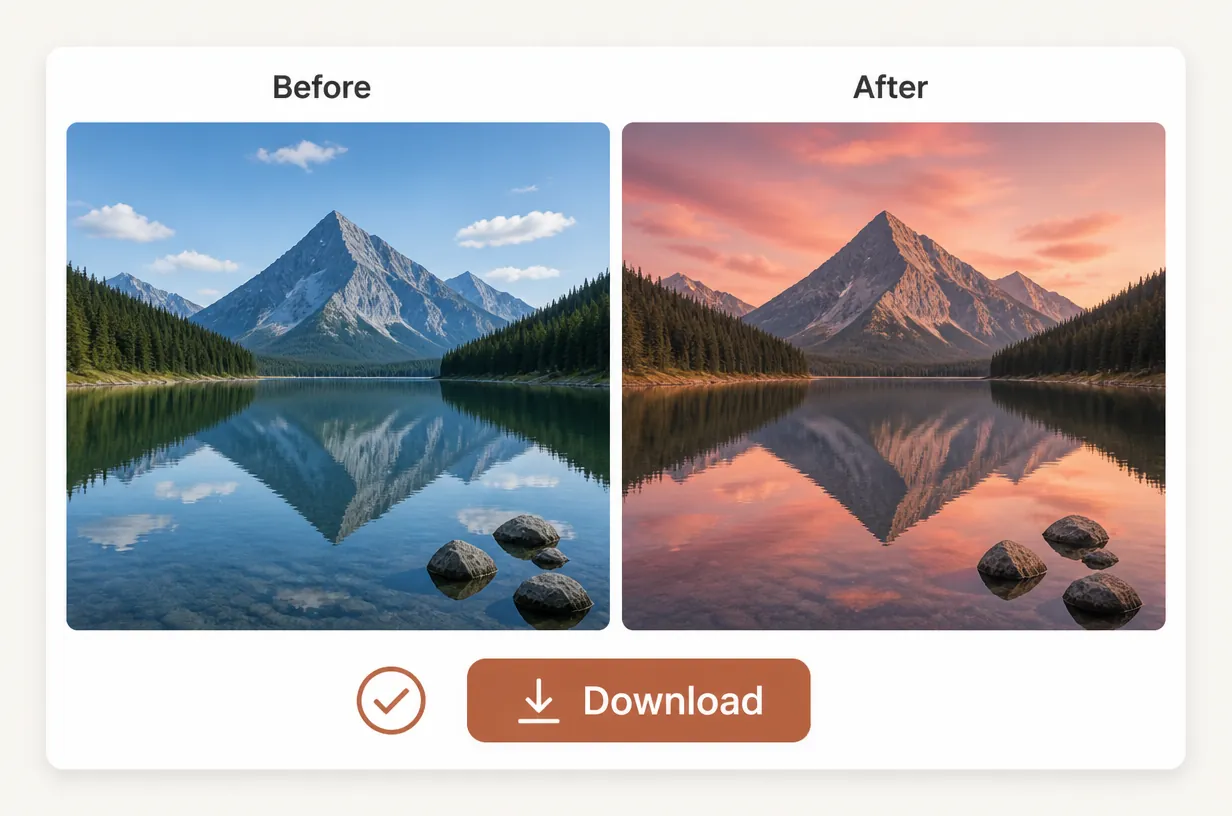
Edit photos online with our AI photo editor. Upload your image and use text prompts to remove unwanted objects, change backgrounds, or adjust colors.
Powered by GPT Image 2Remove ObjectsChange BackgroundsChange Colors
Your photo + What would you like to change?
Image-to-image · 3 credits3
Start by uploading your photo, then describe one change. Choose a prompt below if you need an idea.
Start with a change:
Start with your original
What Is an AI Photo Editor?
An AI photo editor changes an existing image using written instructions. Upload your photo, describe the detail you want to remove, replace, or adjust, and name what should stay. imakeit.ai uses your original image and prompt to generate an edited version you can review and download.
Choose the detail. Describe the edit.
Eight Ways to Change the Photo You Already Have
Pick a change below to load its prompt and any example photo into the editor. Use the example or upload your own photo, then adapt the instruction to your image.
01Background replacement
Give Your Product a Cleaner Backdrop
A cluttered counter can distract from the item you want to sell. Ask for a clean studio setting and specify the product details that matter to your listing.
The editing prompt
Replace the counter and surrounding objects with a warm ivory studio backdrop and a soft shadow beneath the bottle. Keep the bottle's shape, amber glass, white dropper cap, label design and text, position, and framing unchanged.
02Object removal
Clear the Distraction From Your Favorite Shot
Keep a photo you like and ask AI to remove a stray cup, a street sign, or another specific distraction. Name the object and its location so the instruction is clear.
The editing prompt
Remove the red coffee cup on the left side of the wooden table, including its handle, shadow, and red reflections. Fill the area with matching wood grain. Keep the woman's face, hair, expression, pose, clothing, the rest of the table, background, lighting, and framing unchanged.
03Color changes
See the Same Detail in a Different Color
Explore a new sofa color or a different finish on a familiar object. Specify the exact item to recolor and ask to retain its texture, shadows, and surrounding scene.
The editing prompt
Change only the blue sofa's fabric upholstery to muted terracotta. Preserve its woven texture, seams, cushion shapes, and shadows. Keep the wooden legs, rug, floor, walls, artwork, window, curtains, side table, vase, lighting, camera angle, and framing unchanged.
04Object replacement
Swap One Object to Change the Scene
Try a ceramic vase where a lamp stands, or a plant in place of a decoration. Describe the replacement's size and material so it belongs in the original setting.
The editing prompt
Replace only the bronze table lamp on the walnut sideboard with a matte cream ceramic vase holding three olive branches. Match the existing light, shadows, scale, and perspective. Keep the sideboard, wall art, books, bowl, room, and framing unchanged.
05Lighting adjustments
Bring Softer Light Into the Photo
Ask for brighter window light, warmer tones, or softer shadows. Give the lighting a direction and describe the mood you want for a portrait or interior photo.
The editing prompt
Brighten this dining and living room with soft morning daylight from the left window. Use a neutral white balance and gentle shadows. Keep the furniture, wall colors, decor, layout, and framing unchanged. Leave all lamps off.
06Outfit edits
Try a New Outfit in the Portrait You Have
Explore a jacket, a neckline, or a complete outfit from an existing photo. Describe the cut and fabric, then tell AI which facial features and pose to retain.
The editing prompt
Replace only the woman's gray T-shirt with an open navy linen blazer over a white crew-neck top. Keep her face, hair, expression, skin tone, body proportions, pose, jeans, background, lighting, and framing unchanged.
07Hairstyle edits
Explore a Haircut Before the Appointment
Picture a shorter cut or a new hair color using your own portrait. Be specific about length, shape, and shade to turn a vague idea into a visual reference.
The editing prompt
Change only the woman's long dark hair to a chin-length chestnut-brown bob with a side part. Keep her face, expression, skin tone, body proportions, pose, rust cardigan, ivory top, background, lighting, and framing unchanged.
08Text replacement
Update the Words Inside Your Image
Change a short headline on a sign, poster, or promotional image. Put the replacement words in quotes and describe the lettering to retain. Check spelling in the result before sharing.
The editing prompt
Replace "SUMMER" with "AUTUMN" and "SALE" with "EDIT". Keep the two centered lines, dark green uppercase serif lettering, cream paper texture, botanical and geometric artwork, border, wooden tabletop, lighting, and framing unchanged.
Prompts are starting points. Results depend on your photo, instructions, and output settings.
From original to edited image
How to Edit a Photo With Text
1
Upload the photo you want to edit
Start with a clear photo, product shot, or graphic. Your uploaded image gives AI the starting point for the change.
2
Describe the change in your own words
Name the detail to edit and what should stay. Choose your output settings and review the credit estimate before submitting.
3
Review your edit and download
Compare the result with your original. Check faces, labels, and fine details. Refine the prompt for another attempt or download the version you want.
A Clear Instruction Gives Your Edit a Direction
Name the object, say where it is, and describe the change. Then list the details you want to keep. Start with one edit so you can judge the result before trying another.
For exact brand colors, facial identity, and small lettering, check the generated image against your original.
Try this structure
Change [detail] to [new detail]. Keep [specific features] the same.
Change only the blue sofa's fabric upholstery to muted terracotta. Preserve its woven texture, seams, cushion shapes, and shadows. Keep the wooden legs, rug, floor, walls, artwork, window, curtains, side table, vase, lighting, camera angle, and framing unchanged.
Choose the Credits for Your Next Edit
Create an account with a Google email to get 30 free credits. For more edits, compare subscriptions and one-time credit packs.
Plus
$10/month
Billed Monthly
1,000 credits per month
Up to 333 images
Priority queue
Generate multiple images at once
No watermark
Commercial usage rights
Full privacy
Email support
Recommended
Pro
$40/month
Billed Monthly
5,000 credits per month
Up to 1,666 images
Highest priority queue
Generate multiple images at once
No watermark
Commercial usage rights
Full privacy
Priority support
Max
$80/month
Billed Monthly
10,000 credits per month
Up to 3,333 images
Highest priority queue
Generate multiple images at once
No watermark
Commercial usage rights
Full privacy
Dedicated support
Plus
$10$5/month-50%
Billed Annually · $120$60/year
1,000 credits per month
Up to 333 images
Priority queue
Generate multiple images at once
No watermark
Commercial usage rights
Full privacy
Email support
Recommended
Pro
$40$20/month-50%
Billed Annually · $480$240/year
5,000 credits per month
Up to 1,666 images
Highest priority queue
Generate multiple images at once
No watermark
Commercial usage rights
Full privacy
Priority support
Max
$80$40/month-50%
Billed Annually · $960$480/year
10,000 credits per month
Up to 3,333 images
Highest priority queue
Generate multiple images at once
No watermark
Commercial usage rights
Full privacy
Dedicated support
Subscribers get +50% extra credits at the same price
200 Credits
$5One-time payment
Subscribers receive: 300
Base credits: 200
Subscriber bonus: 100
No recurring billing
Valid for 6 months
Recommended
1,500 Credits
$29.9One-time payment
Subscribers receive: 2,250
Base credits: 1,500
Subscriber bonus: 750
No recurring billing
Valid for 6 months
3,000 Credits
$49.9One-time payment
Subscribers receive: 4,500
Base credits: 3,000
Subscriber bonus: 1,500
No recurring billing
Valid for 6 months
8,000 Credits
$99.9One-time payment
Subscribers receive: 12,000
Base credits: 8,000
Subscriber bonus: 4,000
No recurring billing
Valid for 6 months
Before your first edit
AI Photo Editor FAQ
Questions about prompts, uploads, credits, and keeping the details that matter.
Upload your image, describe what you want changed, and click Apply My Edit. For example: "Remove the red cup on the left. Keep the person and the lighting the same." Review the output, refine your prompt if needed, and download the result.
What can I change with this AI photo editor?
Use text instructions to request background changes, object removal or replacement, color changes, lighting adjustments, outfits, hairstyles, and short text edits. Each request starts with your uploaded image. Results vary with the source photo, selected settings, and how clearly you describe the change.
Can I edit only one part of my photo?
You can request a change to a specific object or area by naming it and its location in your prompt. State which details should stay. This editor uses text instructions rather than a brush or selection mask. AI may also change surrounding details, so compare the result with your original.
Can I try the AI photo editor for free?
Yes. Create an account with a Google email to get 30 free credits. You can prepare an edit and check its credit estimate before signing in to apply it.
Which image formats and file sizes are supported?
Upload JPG, PNG, or WebP images. Each file can be up to 20 MiB, with a combined upload limit of 99 MiB. Use a clear source image so the details you want to keep are visible.
How do I keep a face or product the same?
Use a clear original and explicitly list the features to retain, such as facial features, expression, product shape, or label design. Start with one focused edit. AI does not guarantee exact preservation, so check identity, proportions, text, and fine details before using the output.
Can I change text in a photo or poster?
Yes. Name the text to replace, put the new wording in quotation marks, and describe the font style, color, and placement you want to retain. Short, readable text is a useful starting point. Check every word in the generated image, especially small lettering and product labels.
How much does an AI photo edit cost?
The credit estimate depends on the selected model, resolution, quality, and number of outputs. Review the amount displayed next to Apply My Edit before submitting. A new attempt has its own cost. Compare subscriptions and one-time credit packs in the pricing section above.
How is this different from an image to image generator?
This page focuses on specific changes to an existing photo, such as replacing a background or removing an object. Our image to image page focuses on broader transformations, including new art styles, sketch rendering, and combining references. Both use uploaded images and a text prompt to guide the output.
How do I save an edited photo?
Use the download button on a completed edit to save the image to your device.
Put your next edit into words
Have a Photo That Needs One Change?
Upload it and tell AI what to edit. Start with the background, an unwanted object, or the detail you have been meaning to fix.